
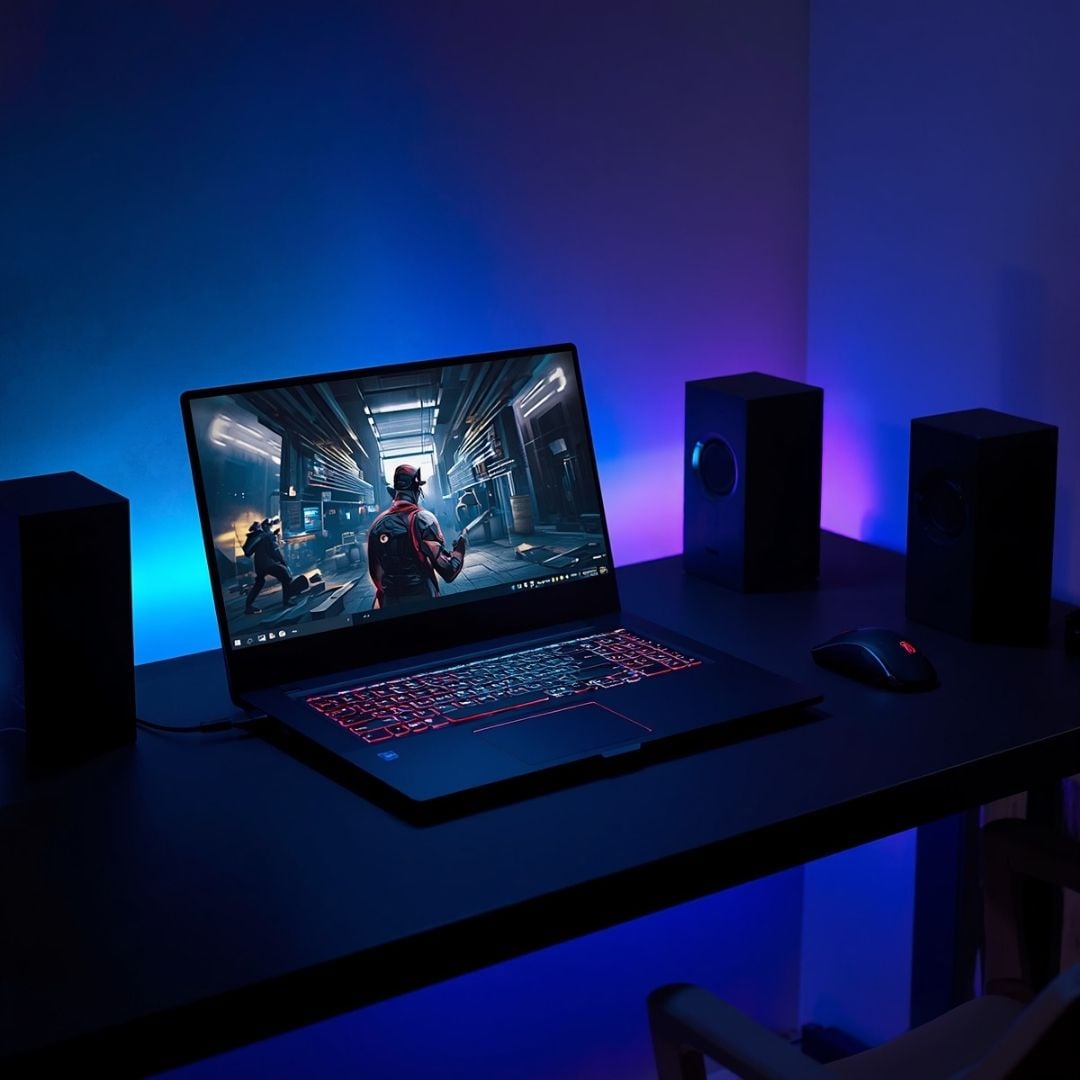
A beast of a processor. The best RTX graphics. High refresh-rate display. Customisable specs. Aesthetics of RGB lighting – Your gaming laptop’s apparently loaded. But instead of acting like an absolute FPS monster, it decided to hang up on you right when you needed it. We get the frustration; we really do.
Seriously, you pay more than a thousand bucks, expecting powerful and smooth gameplay. But in return, you get laggy, choppy visuals that suck the willpower out of you. By the time you realise that your graphics card won’t help much with the rough performance, it’s too late.
However, before you start blaming that RTX GPU, better check out the other reasons causing this gaming lag. So, keep reading, because this blog’s got all the reasons (with solutions).
Reasons Why RTX GPUs Can’t Guarantee Smooth Gaming
The RTX chip is a great start, for sure, but smooth gameplay depends on more than just good graphics. Head below to learn more.
Thermal Throttling
Did you know gaming laptops can hit the throttle phase above the temperature of 85°C? Once your device starts thermal throttling, you’ll notice a very blunt dip in performance. This is because of the low FPS and inconsistent frame times. And if the CPU is throttling heavily, then apart from the stutters, you’ll also face extra-long load times (kind of a bummer).
Capped Power Limits
First things first - a laptop RTX card is not the same as a desktop card. So quit expecting the same performance from both! Notebook chips draw limited power to protect the battery and keep the thermals manageable, affecting raw performance. This is why a desktop RTX 4070 (running at 200W) is smoother compared to a notebook like ASUS ROG Strix G16 (with a notebook 4070 version running at 100W).
CPU Bottlenecks
A gamer’s performance depends on both the CPU and GPU - not just one. While your graphics processing unit handles rendering, your processor should manage the game logic, calculations, AI behaviour, and all such tasks. Now, if the processor is not good enough, or say, it becomes overloaded, then your graphics chip is forced to wait. This waiting time is what creates all those frame drops and snail-paced struggles in your game.
RAM & SSD Issues
RAM and SSD can sometimes be the main culprits behind stuttering due to bad frame pacing. Especially if you’re running a single RAM stick, you’ll notice that your graphic assets (like textures, maps, and game data) take forever to load. Similarly, if your SSD is nearly full, the game will stutter a lot. This is why most gaming notebooks don’t have the old NVMe or HDD.
Refresh Rate & Resolution
Brands love throwing in 1440p and 4K screens to gaming laptops, mainly because it all looks sick from a marketing perspective. But as the resolution rises, it becomes tougher for a mid-range GPU to maintain stable frame rates (especially under tighter power draw). So, if you’re going after a 1440p resolution screen just because it’s got 78% more pixels than that 1080p screen, just don’t.
Background Bloatware Burden
Having a tonne of background processes in your notebook is normal, but also pretty bad. This is because all those uninvited apps are hogging your machine’s resources, while being absolutely no good to your game.
On their own, these trial programs, pre-installed software, and antivirus processes are harmless. But combined? The bloatware is crazy, and it will make your gameplay suffer by using CPU cycles.
Outdated GPU Drivers
A driver is basically a translator for your GPU and games. If the driver is outdated or has bugs, your performance is bound to go downhill. Crashes, black screen, system freezes, flickering - your device will go through all this and more at once. And it’s not just about old drivers; sometimes, new drivers can also be a bit dodgy, but nothing a quick driver update can’t fix.
Gameplay Optimisation Issues
Sometimes the issue is in your graphics or game settings. You see, the NVIDIA badge has certain expectations tied to it; many people assume that they’ll get instant immunity from the high-graphics settings. However, Ray Tracing is brutally demanding.
Similarly, there’s volumetric fog, ultra-shadows, and ambient occlusion all silently draining frames in the background. On a gamer’s notebook, the non-graphics settings are also usually at max, which further limits you.
The Optimus Problem
With NVIDIA Optimus, your RTX doesn’t directly send frames to the display; instead, those frames make a quick pit stop through the integrated graphics. However, this extra step increases the overall process latency, costing you frames. As a result, your game becomes less responsive. But a MUX Switch can always boost your frame rates by 5%-15% (or even more).
Battery Mode On
Okay, this one’s pretty basic! It’s a common fact that heavy gameplay can drain a battery in 1.5 to 2.5 hours. Now, if you’re playing unplugged, that’s a problem, because the CPU and GPU kind of scale back their resources to save energy and make the battery last longer. So, if your games feel slow, there’s a high chance that your device is not connected to the charger.
Tips to Fix Gaming Laptop Lag Without Replacing Your GPU
There are a few ways through which you can fix that lag without having to swap the GPU - just minor tweaks here and there. Head below to check them out.
- Switch Windows and your notebook’s software to High Performance mode before gaming.
- Always game while plugged into the original charger to get max CPU and GPU power.
- Clean your machine’s vents regularly and use a cooling pad to avoid overheating.
- Enable the MUX Switch so that your RTX chip can connect to the display without intrusion.
- Update GPU drivers regularly; in case of a new buggy driver, install the older driver version.
- Upgrade to dual-channel RAM for smoother gameplay, and also keep some SSD space free.
- Close unnecessary background apps and programs to free up CPU, RAM, and SSD.
Conclusion
Just because your laptop’s got an RTX chip doesn’t mean it will run at full speed. There’s a lot of junk behind the scenes that’s ruining your performance. The background bloatware, power limits, thermal throttle - everything just piles up to give you the worst gaming experience of your lifetime.
The good news, though? You can fix most of these issues easily. A few tweaks here, a little cleanup there, and voila! Your notebook will finally start acting like a beast. So, RTX cards aren’t bad at all. It’s just the way you use your device that gives you a tough time.