
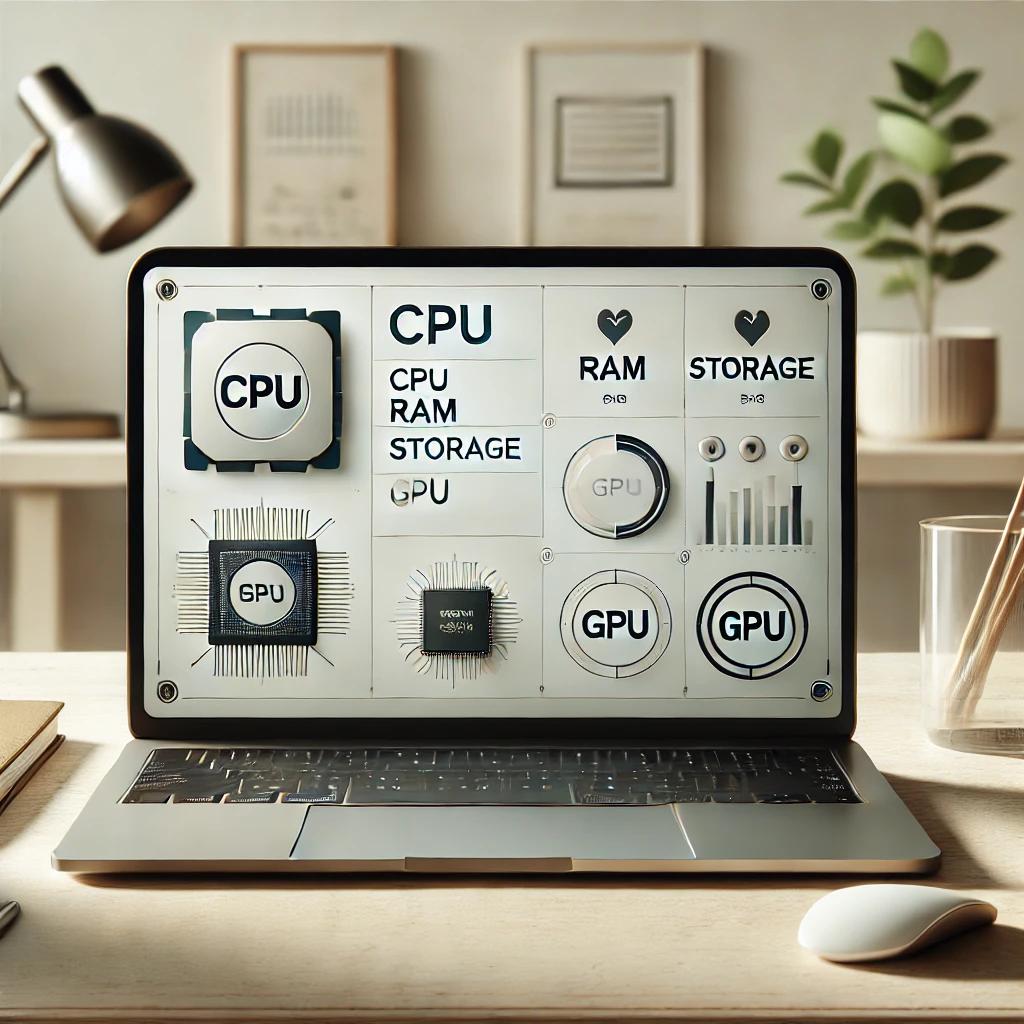
Understanding the specifications of your laptop is important when it comes to optimizing performance and ensuring that it is going to meet your needs.
So, the first thing that you need to know is that the specs of a laptop usually encompass key components like the memory (RAM), processor, graphics card, display, and storage capacity, all of which are going to play a vital role in the determination of how well your device will be able to handle the tasks - from running demanding software to gaming and the management of large files.
When you know these details, it is going to make sure that you make informed decisions when it comes to upgrades, troubleshooting, and also in ensuring that your machine is equipped for your specific requirements.
Importance of Knowing the Laptop Specifications
The key thing to know here is that the performance of a portable computer is directly related to the specifications of the hardware. For instance, a processor that has low clock speed or limited RAM is going to result in slow performance, especially when it is running resource-heavy applications like gaming software or video editing.
By checking the specs of your laptop, you will be able to ensure that your system is meeting the minimum requirements for the tasks that you need it to perform. Also, you may experience issues like lags, crashes, or software not running in the correct manner if the specs are falling short.
How to Check Your Laptop Specifications
You can check the specifications on Windows in a very simple way and the best part is that you do not need any external tools to do so. Here is how you can do that.
1. Using Windows Settings:
- You have to click on the Windows icon that is present at the bottom left of your display.
- There is a gear icon for Settings present there and you need to click on it.
- In this menu, you have to proceed to System and then make your way to the section reading About.
- Now, here, you will get a summary of your device's specs, which will include the RAM size, processor type, and information about your operating system.
This method provides a basic overview, which is sufficient for most users. However, if you need more detailed information about your system, you can also explore other in-built options, such as Device Manager and System Information.
2. Viewing Detailed Specifications Using System Information
Now, if you want to get a more comprehensive overview of the specifications of your machine, you can use the System Information Tool as well. This tool is going to offer you detailed insights into the hardware of your system, it also includes the information about processor, motherboard, memory, and other components. Here is how you can do this.
- You have to type “System Information” into the search bar of your Windows.
- Then you can select the app when it pops up on your results.
- When it has been opened, you can see the detailed breakdown of the specs under the section titled System Summary.
This option is especially useful for users who need to troubleshoot hardware issues or verify the compatibility of their PC with specific software.
3. Checking Specifications Through PowerShell and Command Prompt
For more advanced users, Command Prompt and PowerShell can also help in providing detailed hardware information. These command-line tools are going to allow you to get these specifications without having to navigate through the menus. Here is how you can do it.
- You can open Command Prompt or PowerShell by typing its name into the taskbar search bar.
- When it has been opened, you have to type in systeminfo and then press Enter.
- Wait for a few seconds, and after that, you are going to get a list of the specs of your system which is going to include information regarding your operating system, RAM, and CPU.
This method is quick and quite efficient for users who are familiar with command-line interfaces, and it also helps in providing a thorough look at your hardware specs.
4. Using DirectX Diagnostic Tool (DxDiag) for Graphics and Sound Information
If you are looking for details about the graphics of your computer along with the audio settings, the DirectX Diagnostic Tool (DxDiag) is another useful built-in utility at your disposal. Here you will get specific information about your GPU (Graphics Processing Unit) and also the sound settings and this is particularly helpful for gamers or those who are working with video editing software.
To access DxDiag, you have to do this:
- Go and type “dxdiag” into the taskbar search bar and when it opens, you can select the DxDiag application.
- Now, the DirectX Diagnostic Tool will open, and it will display tabs for Display, Sound, and Input devices.
This will allow you to identify the exact model of your graphics card and also help in the confirmation of whether your system supports specific video or sound features that are required by certain programs.
Conclusion
It is very essential for you to know the hardware specs of your PC as it is quite essential to give you a smooth performance and understand the limitations that your device might have. Whether you are troubleshooting or even considering upgrading your machine to a better one, or you may just be curious about your device - you can check out the specifications in these really easy ways that are mentioned above.
With these, you can make informed decisions when it comes to your device and will know how to get the best out of your machine. You also have to make sure that you are giving your computer regular maintenance and keeping an eye on the hardware so that you can prevent any performance issues that may arise. These small things can help prolong the life of your system.