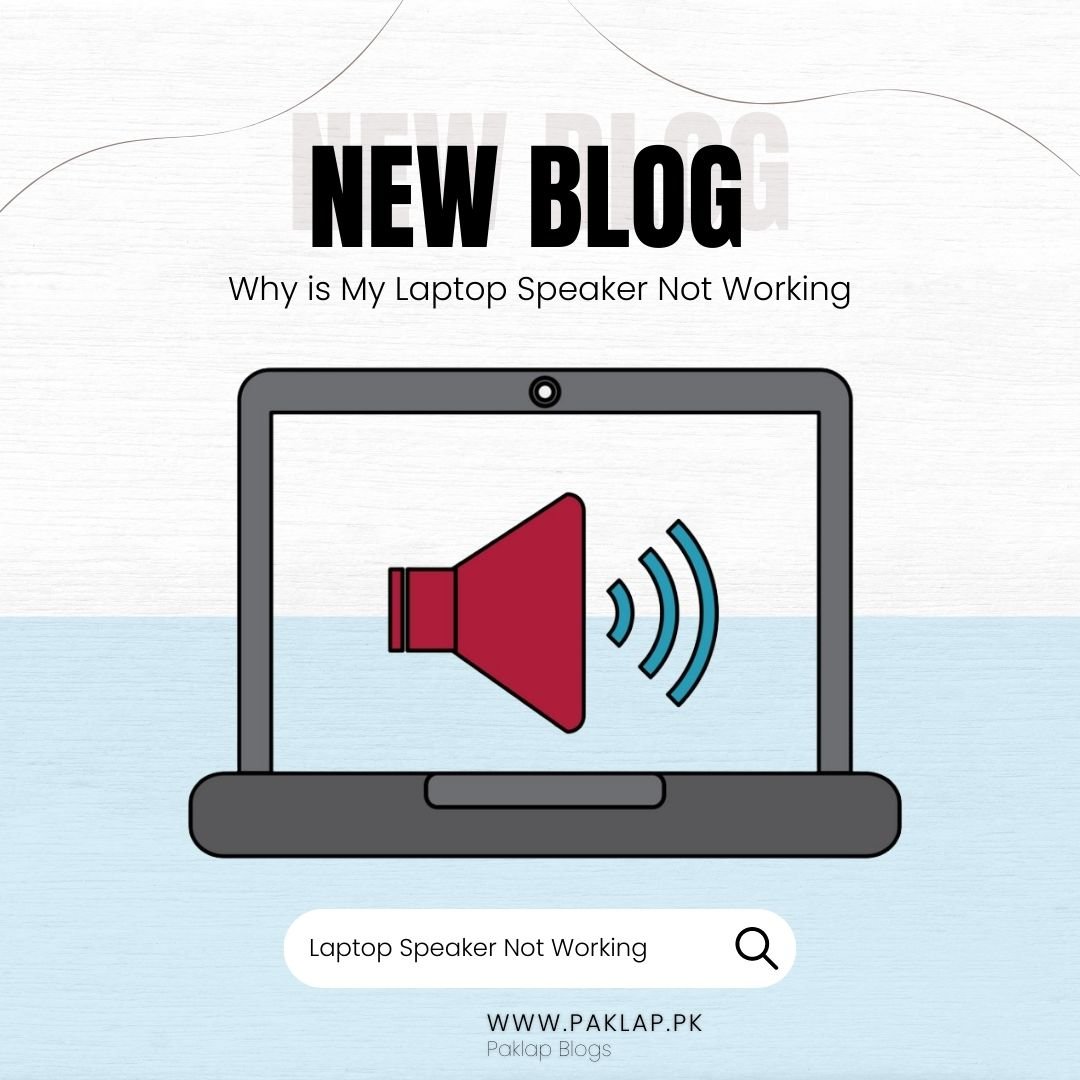
Whether you want to watch your favorite movie or attend a meeting via video call on a laptop, having high-quality speakers is a must. Good audio quality ensures clear communication that can positively impact your personal or professional activities. If you are unable to hear clear audio, the first thing that will come to your mind is, why is my laptop speaker not working?
In such situations, you can try different things on your own, like restarting the system, checking sound settings, or updating the drivers of the device. But if anything does not work, then it can disrupt your activities. To avoid such frustration, you must know beforehand what to do in such situations.
Everyone does not have the technical expertise to fix the speaker issues, but it is essential to have the basic knowledge to identify the problem. Without further ado, let's explore this guide that will answer your question about why is my laptop speaker not working, so you can take the right measures accordingly.
Outdated Audio Drivers
One of the primary reasons that your laptop's speakers are not working is outdated audio drivers. In some cases, the default driver does not work, so to address this issue, you must check your drivers, and if they are outdated, you must update them. To update your audio drivers, you may check the tutorials on YouTube that will help you fix this issue. The procedure is not complicated, so you should be able to understand it easily.
Also, there are different types of third-party tools available that can help you update the drivers automatically with a few clicks. Most of the audio-related errors that occur in Windows are due to old rivers. Apart from this issue, if you have an outdated system, then it can also cause errors like BSOD, which is a full system failure. To avoid such issues, automatic tools can be the best option as they can find and download the right version of drivers according to your windows. You can find plenty of such tools by doing online research. In this way, you do not have to worry about this anymore.
Users need to understand that audio drivers can get corrupted with time. Therefore, you need to keep an eye on your drivers to ensure your activities are not disturbed. To find the right third-party tool, do proper research and consider the feedback of users before making the final decision. You can also opt for the paid tool if your budget allows you.
Audio Sensor is not Working
If an issue occurs in the audio jack of your device, then it can affect the sound quality and prevent your speakers from working properly. The audio jacks have sensors that recognize your headphones when you connect them to your laptop. The glitches in the audio sensor can make your hardware dysfunctional. It may appear that your headphones are connected, but it will disable your built-in speakers.
Many users have stated that connecting an audio device to the audio jack can resolve this issue as it will unstick the audio sensor. You can use different objects like toothpicks if you do not have an audio device, but an audio jack is recommended to fix the issue. If the issue still persists, then it is recommended to seek technical assistance.
The Issue in Sound Settings
If you wonder why is my laptop speaker not working, then there could be something wrong with your sound settings. It is also possible that you have muted the sound by mistake, which is common.
Therefore, if you do not hear any sound, then the first thing you should do is check your sound settings. Simply click the volume icon on the bottom right corner of your screen to check sound settings are fine, and the volume is set at maximum.
The Hardware Issue
One of the primary reasons that the speakers of your device are not working is its physical issues. Inspect your hardware properly to find out the root cause of the issue. The design of the laptop and the expertise of every individual is different, so you have to take measures keeping this in mind. You should also consider the warranty period of your device. If it is still not over, then take it in for the service that will help you detect the issue.
If you want to inspect the device yourself, then you must follow particular steps. Firstly, you must carefully open the laptop's lid. It is advisable to take this step if you have opened the lid before since you will know which tools to use to execute the process perfectly. After opening the lid, look for signs of any physical damage, such as torn cones or damaged wires. Also, check the grills to ensure that it is not broken and anything is not stuck in them.
To check the wiring, follow the wires that connect to the motherboard. If any wire is broken, then you have to get it fixed, as it could be the reason your speakers are not working. If any wire is unplugged or loose, then it can also cause an issue in the functionality. It is better to get assistance from a professional if you are not sure that you can handle the device yourself.
Conclusion
Audio issues can occur anytime even if your device is under warranty, you can experience audio issues. Therefore, you must be aware of the common reasons that can help you take the right steps accordingly. From outdated audio drivers to hardware issues, it could be any reason that your speakers are not functional anymore.
If you have the basic knowledge regarding issues, then you can also save the cost of seeking professional assistance. It will help you take the right steps yourself to resolve the issue. This blog will hopefully answer you the question, "why is my laptop speaker not working?".
For more tech-related insights and updates, stay tuned to Paklap. It will make a valuable addition to your knowledge and help you fix different tech issues of your devices yourself.