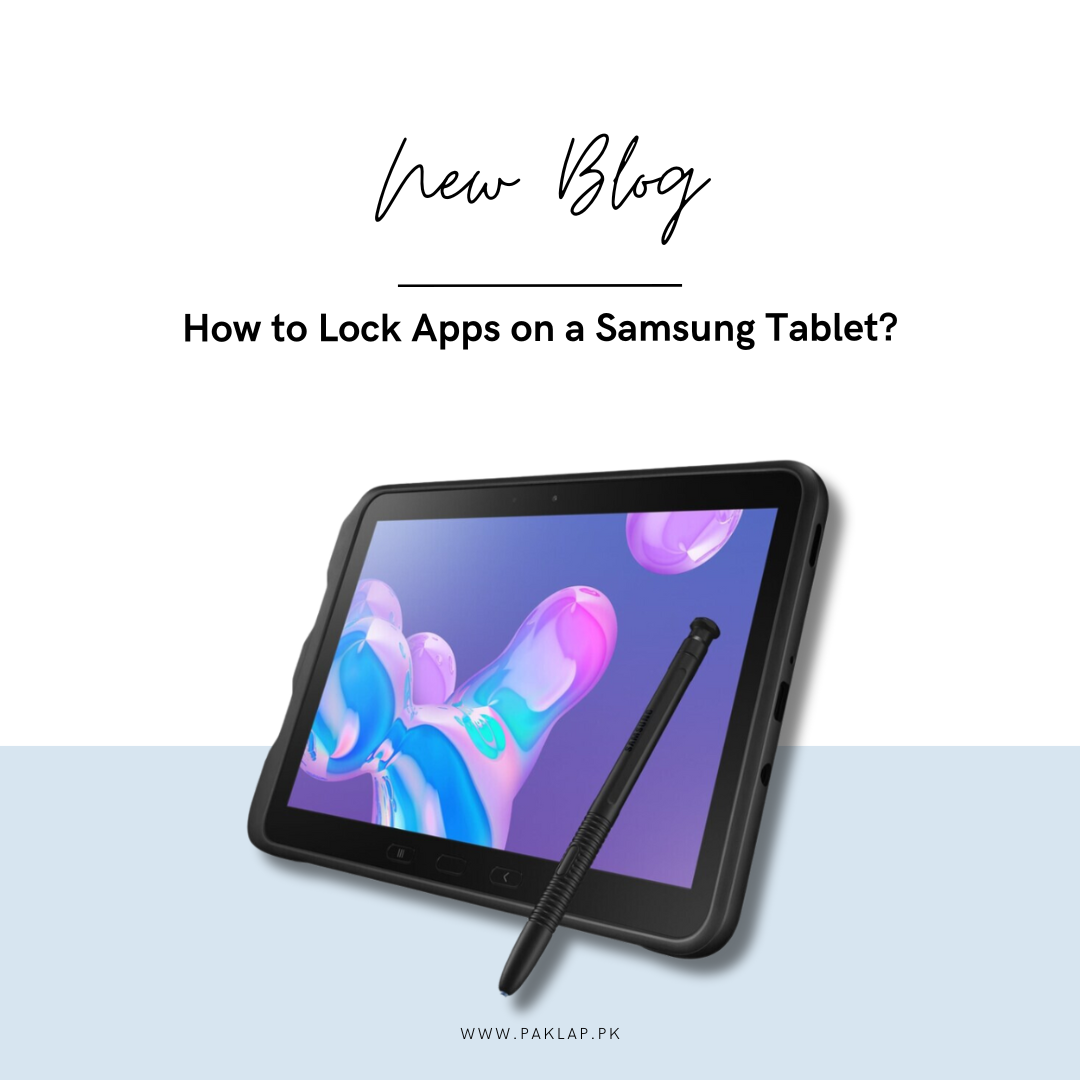
As you may already know, smartphones and tablets tend to hold a lot of personal information. We use them for work purposes, entertainment, and communication, which means that we have a lot of important data saved on them.
If you have a Samsung tablet, you may want to keep your applications safe on it. Here, we will help you learn how to lock your tablet and also the best way to protect your personal stuff.
Why Lock Your Applications on Samsung Tablets?
Well, the number one reason for locking your Apps is that it is going to add an extra layer of security to your gadget. Here are some more reasons listed below.
● Privacy Protection
Locking your stuff is going to help in keeping your private stuff tucked in safely.
● Prevent Accidental Changes
It will be a wall against someone accidentally or purposefully deleting or changing things in your device.
● Protect The Sensitive Data
It will help in securing applications that have private or important information saved up - like banking or email. You will be getting added protection with this.
● Parental Control
If you have kids around, you can easily keep them away from stuff that they should not be.
Now that you understand the importance of locking the Apps on your tablet, we are going to look at the different ways that can lock Applications.
Method 1: Use The Built-in Features to Lock the Applications
Your Samsung Tab has some built-in features that can help in doing this. With the help of these features, you will not need to download anything extra at all. This is how you can do it:
Step-by-Step Guide:
1. Open Settings:
You have to swipe down from the top of the screen and then tap the gear icon in order to open up the Settings Menu.
2. Go to Biometrics and Security:
Now that you have made your way to the settings, you need to scroll a bit down till you manage to see ‘Biometrics and security’. You need to click on this.
3. Find App Lock:
Here, you will search for an option that is named ‘App Lock’ or ‘Secure Lock Settings’. It may be a little different as per the settings of your tablet.
4. Set Up Your Unlock Method:
Now here, you can opt for whatever PIN or password that you need to put in. You can also use your fingerprint or Face ID to unlock the apps. Make sure that you are following the on-screen instructions that will allow you to set this up.
5. Choose The Apps:
When you are done choosing your preferred method of unlocking, you have to tap on the apps that you are going to lock. This will allow them to be secured and now only you can access them.
6. Hide Locked Apps (Optional):
In some tabs, you can also hide the locked apps from the app drawer. If you find this option, you can easily turn it on in order to get some added privacy.
Why Use Samsung’s Built-in Features?
● Easy to Set Up:
You do not have to go through the hassle of downloading some other applications.
● Works with Samsung’s Security:
It will be using built-in security features like fingerprint recognition.
● Quick and Simple:
It is not complicated and you do not require technical knowledge to perform this.
Method 2: Use Secure Folder to Lock Apps
We are going to be discussing one more method for locking up your applications on the tab and this one is by using the Secure Folder feature. This is going to create a private space on your device and you can easily manage to store your data as well as applications there in a safe manner. It will be using The Knox Security of Samsung to keep everything protected.
What is a Secure Folder?
This is a special, encrypted area on your Samsung tab. Apps stored inside this folder are protected by a separate password or biometric lock. This is a great way to keep sensitive data safe.
Step-by-Step Guide to Secure Folder:
1. Open Settings:
You have to swipe down and tap on the gear icon to open settings.
2. Go to Biometrics and Security:
Now you shall be tapping on "Biometrics and security" so that you can find more security settings.
3. Select It:
Go and click on “Secure Folder” which will then be asking you to sign in to your Samsung account if you haven’t done so already.
4. Set Up Your Lock:
Think of a complicated PIN or password, or you can also use biometric options (fingerprint or face) for the Secure Folder.
5. Add Them to Secure Folder:
You will have to tap on the "Add Apps" button now so that you can move or copy these into the Secure Folder. Once you are done with this, these will be now safe inside a separate area.
6. Access Apps from Secure Folder:
Enter the code or biometrics that you have chosen to open up the stuff inside this.
Why Use a Secure Folder?
● Separate Space for Applications:
Your stuff inside this is going to be isolated from all the other things present on the device.
● Encrypted Protection:
The data will be encrypted which will make it harder to access if someone uses your device.
● Perfect for Sensitive Stuff:
For banking applications as well as emails, this is ideal as you will be getting proper privacy.
Method 3: Use Third-Party Applications
Sometimes, the built-in tools are not sufficient for us. We might need third-party applications for this purpose. These can be downloaded from the Google Play Store.
Extra Security Tips
Here are some other tips that may help in keeping your device protected and safe.
1. Use Strong PINs or Passwords
You simply should not put codes that are easy to guess. Most people opt for ‘1234’ or ‘0000’ - No, do not go for it. These should be hard to guess.
2. Enable Biometrics
It is best if your machine supports fingerprints or facial recognition. This can provide you with added safety. Also, these are harder to fake as compared to PINs and passwords.
3. Update Your Tablet Regularly
You should make sure that you check the software updates for the latest security patches. These will help you stay updated and will also protect your device from any new threats.
4. Download Applications from Trusted Sources
You should only initiate the download process of applications from trusted developers like Google Play to avoid malware.
5. Don’t Share Your Passwords
You should always keep your PIN or password private. If someone else knows it, they can access your stuff.